Use it on a phone
The Console opens in a phone’s browser too. It suits checking how sessions are doing, answering a question or sending a short reply. Involved editing is better done on a computer.
How it works
Section titled “How it works”| What you do | What happens |
|---|---|
| Bring out the left pane with ≡ and pick a session | The session fills the screen and the left pane closes by itself |
| Swipe the screen sideways | Steps through the running sessions |
| Press the key row under the terminal | Sends keys that are awkward on a soft keyboard |
Bring out the left pane
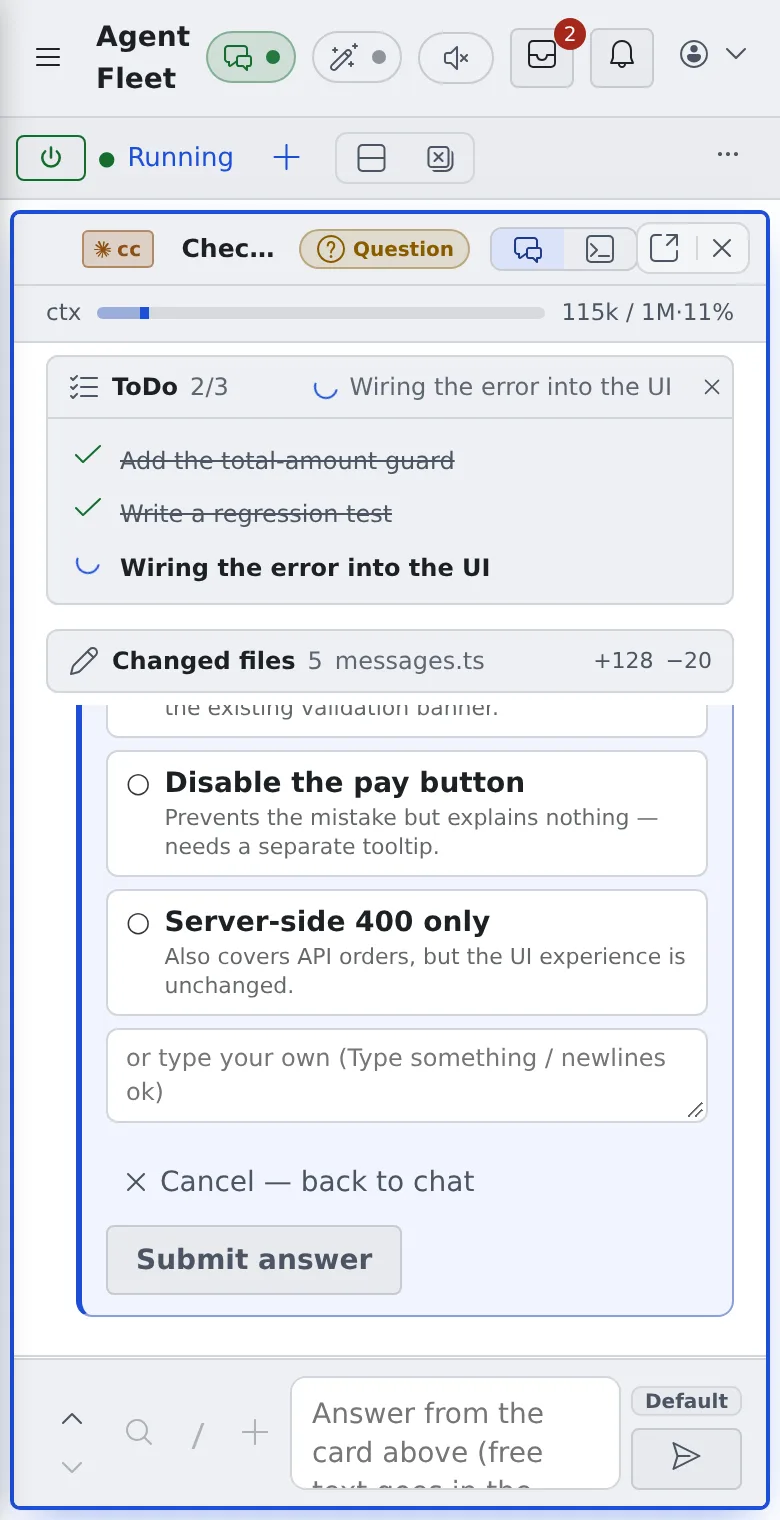
Section titled “Bring out the left pane”- Press ≡ at the top left to bring out the left pane. Picking an item closes it by itself
- A swipe to the right that starts at the left edge of the screen brings it out too. With the left pane open, a swipe to the left closes it
- The browser’s back gesture opens it again
Step through the sessions
Section titled “Step through the sessions”Swipe the screen to the right to move to the running session one row below in the left pane’s list, and to the left to move one row up.
- Where you landed shows briefly, as “2/3 session name”. At either end it wraps around
- shell and SSM sessions are skipped. With a working set chosen, it steps only through that set
- A swipe to the right that starts at the left edge brings out the left pane instead. To move to the next session, start the swipe away from the edge
- Over an input box, the browser pane or anything that scrolls sideways, such as a code block, it does not switch
Operate the terminal
Section titled “Operate the terminal”In a Terminal (CLI) session or a shell, a row of keys sits under the terminal.
| Key | Sends |
|---|---|
Esc Tab |
Esc, Tab |
← ↑ ↓ → |
Arrow keys |
^C |
Ctrl+C (stops the running command) |
⏎ |
Enter |
- They are sent without bringing up the soft keyboard
- Swipe vertically on the terminal with one finger to go back through past output. In an app that uses the whole screen, such as vim, it scrolls that app
Install it and get push notifications
Section titled “Install it and get push notifications”Add the Console to your home screen and it opens like an app. It can also push a notification when a session needs you, with the Console closed.
- Open the Console in the phone’s browser and sign in
- iPhone / iPad: in Safari, press the Share button and choose Add to Home Screen, then open the Console from the new icon. Push notifications work only when the Console is opened from that icon, on iOS 16.4 or later
- Android: in Chrome, open the menu and choose Install app (or Add to Home screen)
- In the Console, open ⚙ Settings → “Notifications” and turn on “Push notifications on this device”. Allow notifications when asked
The step-by-step setting, the kinds that can be pushed and how to remove a device are in Get notified. The section is not shown on a deployment where the administrator has not switched Web Push on.
The bar and notifications
Section titled “The bar and notifications”- On a narrow screen, Split down and Close all move from the workspace action bar into its ⋯ menu
- Home, Sessions overview and Images are on the activity bar, the column of icons that comes out with the left pane
- Notifications appear just below the top bar and do not cover the input box. Tap outside to dismiss them. A notification with a button, such as Update, closes only with ×
- “At a glance” on Home starts folded
Related
Section titled “Related”- Find your way around the screen
- Get notified: push notifications to a phone
- Reply to a session
- Use the terminal: copy and paste in the terminal