
Collect memos and hand them over
Write instructions and requests into the Memo queue as they occur to you, and hand them to a session or an assistant later, all at once. Jot them down on your phone on the move and hand them over from your PC, for example.
How it works
Section titled “How it works”| What you do | What the agent does |
|---|---|
| Collect memos | Nothing. A memo reaches no one until you send it |
| Have an assistant tidy them, if you like | Turns the jottings into clear instructions and suggests categories. Nothing changes until you apply it |
| Pick a destination and send | The session or assistant you picked receives the memos as one message |
Memos are stored on the server, so the same queue shows on another PC or your phone.
Write a memo
Section titled “Write a memo”- Press + (“Add memo”) in the header of the Memo queue view. From the keyboard, Alt+A, or the leader key (Ctrl/⌘+K) followed by M, opens it too
- Write in “Add a quick memo… (send them together later)”. Put a group name in “Category (optional)” if you like
- Add it with “Add” (or Ctrl+Enter). Esc or the × (“Close”) button closes the box
- Attach images by pasting or dropping them into the box, or with the attach button
- Memos are grouped by repository, and by category within it
- A memo added from a worktree session, or from a file in a worktree, goes under the parent repository, not under a group of its own for that worktree. Memos already under a worktree’s group stay there; drag them to move them
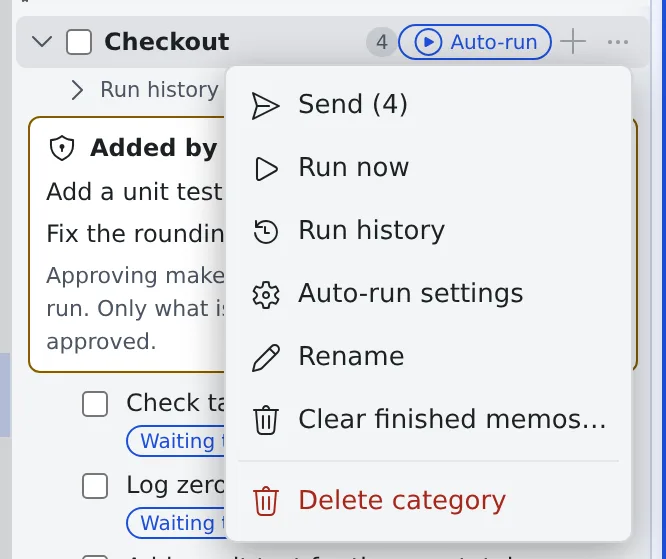
- A category header keeps only the fold arrow, the tick box, the name, the count, one badge (auto-run, paused or off), + and ⋯, and in an auto-run category a mark when the last read of the repository’s settings file found a difference (“Repository settings differ”) or an error (“Repository settings file has errors”; see Keep auto-run settings in the repository). Everything else is in the menu behind ⋯ (or a right-click on the header, or the Menu key): “Send”, “Run now”, “Run history”, “Auto-run settings”, “Rename”, “Clear finished memos…” and “Delete category”. “Send” shows only when something can be sent, and “Run now”, “Run history” and “Clear finished memos…” only in an auto-run category. Any other item that cannot act now stays listed, greyed out, with the reason under it. Drag the header to reorder categories
- Press + on a category header to write straight into that category. “Add category” creates one ahead of time
- The send button of an open file can also “Add to queue” a memo about that file (Hand a file to a session)
- “Save to memo” on the “Start working” screen moves the prompt you are writing, attachments included, into the memo queue and clears the box. “Start with this” in the memo’s ⋯ brings it back, and the memo goes away once the session starts
Read and edit memos
Section titled “Read and edit memos”- The body is cut to two lines. Press it to open the whole text, and press again to edit (Ctrl+Enter saves, Esc cancels)
- “Collapse” under the body goes back to two lines
- The row’s ⋯ (or a right-click) offers “Edit”, “Send this memo”, “Copy” and “Delete”. Depending on the memo it also offers “Collapse”, “Start with this” (a memo saved from the “Start working” screen) and, in an auto-run category, “Run now”, “Stop chain” and “Return this run to the queue” (Run memos automatically)
- To delete several memos at once, tick them and press “Delete” at the bottom. It asks with the count and cannot be undone; memos already being sent are skipped
- Drag to reorder memos or move them to another category. Press a category’s name, or choose “Rename” in its ⋯ menu, to rename it. Deleting a category moves its memos to “Uncategorized”
- “Clear finished memos…” in a category’s ⋯ menu deletes the memos that were delivered or replaced, after asking with the count. It cannot be undone. It is offered in auto-run categories only. The run history and the run counts stay, but the text of those memos is gone, “Return to queue” no longer works for their runs, and a tidy run can no longer be undone for the replaced ones. A finished memo that another memo is still waiting for is kept
Point a memo at a work item
Section titled “Point a memo at a work item”In the detail of an issue, a ticket or a pull request, “Add to auto-run” saves a link to that item as a memo, with a note of your own if you like. Which category it goes in, what is saved and what a session receives are in Run memos automatically.
- A memo that points at an item shows the item’s key as a link to it, with the item’s title when the work-item list has it, and your note below. A memo may be only the link
- The item’s text is not copied into the memo
- Editing the note keeps the link. “Remove the link” in the edit view drops it, once you save
Have an assistant tidy them
Section titled “Have an assistant tidy them”- Tick the memos to tidy
- Press ✨ (“Organize the selected memos with an assistant”) in the header. The workspace has to be running
- The “Tidy with assistant” screen lists the rewritten instructions and the suggested categories
- Choose the suggestions to apply and press “Apply ◯ item(s)”. The memos do not change until you press it
When every ticked memo is in one auto-run category, the screen is “Tidy auto-run notes” and the assistant also proposes merging notes into one, splitting one note into several, moving a note to another category, or leaving it. Each proposal is shown as a before and after, with what it means for the note: the new note waits to run or waits for approval (it takes the state of the notes it came from), a moved note keeps waiting to run only in a category that this category lists as a destination, otherwise it waits for approval there, and a move to an ordinary category makes it an ordinary note. Untick the proposals you do not want and press “Apply ◯ proposals”: they are applied together as one tidy, and you can undo it from the category’s tidy history until its notes are sent. Some proposals are shown under “Proposals not applied” and change nothing: merging notes that were added from different places or are in different states (waiting to run and waiting for approval), merging or splitting file notes, notes with images and notes that point at an item (these can still be moved), and anything the Control Plane would refuse. If a note changed after the screen showed it, nothing is applied and the notes are reloaded. A selection over several categories, or in a category that does not run by itself, gets the one-by-one rewrite above, as before.
Send them together
Section titled “Send them together”-
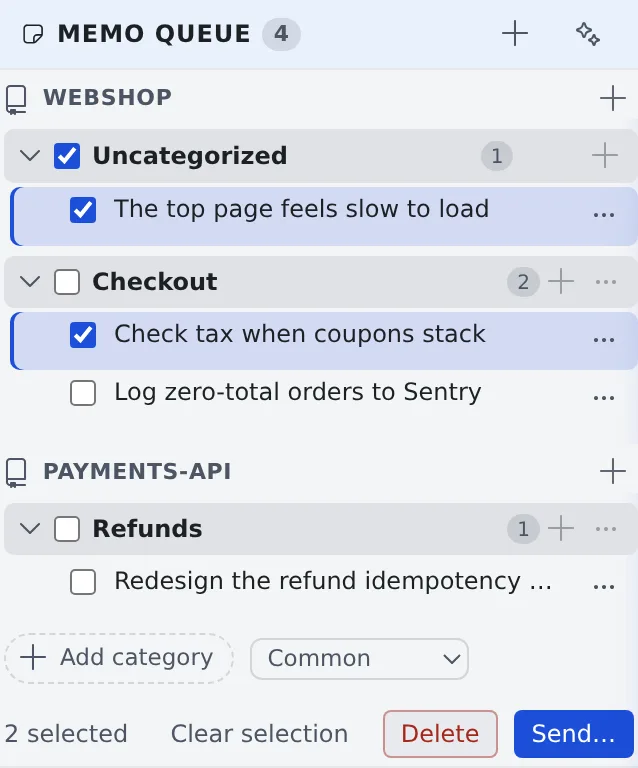
Tick the memos to send and press “Send…” at the bottom. “Send” in a category’s ⋯ menu sends that whole category
-
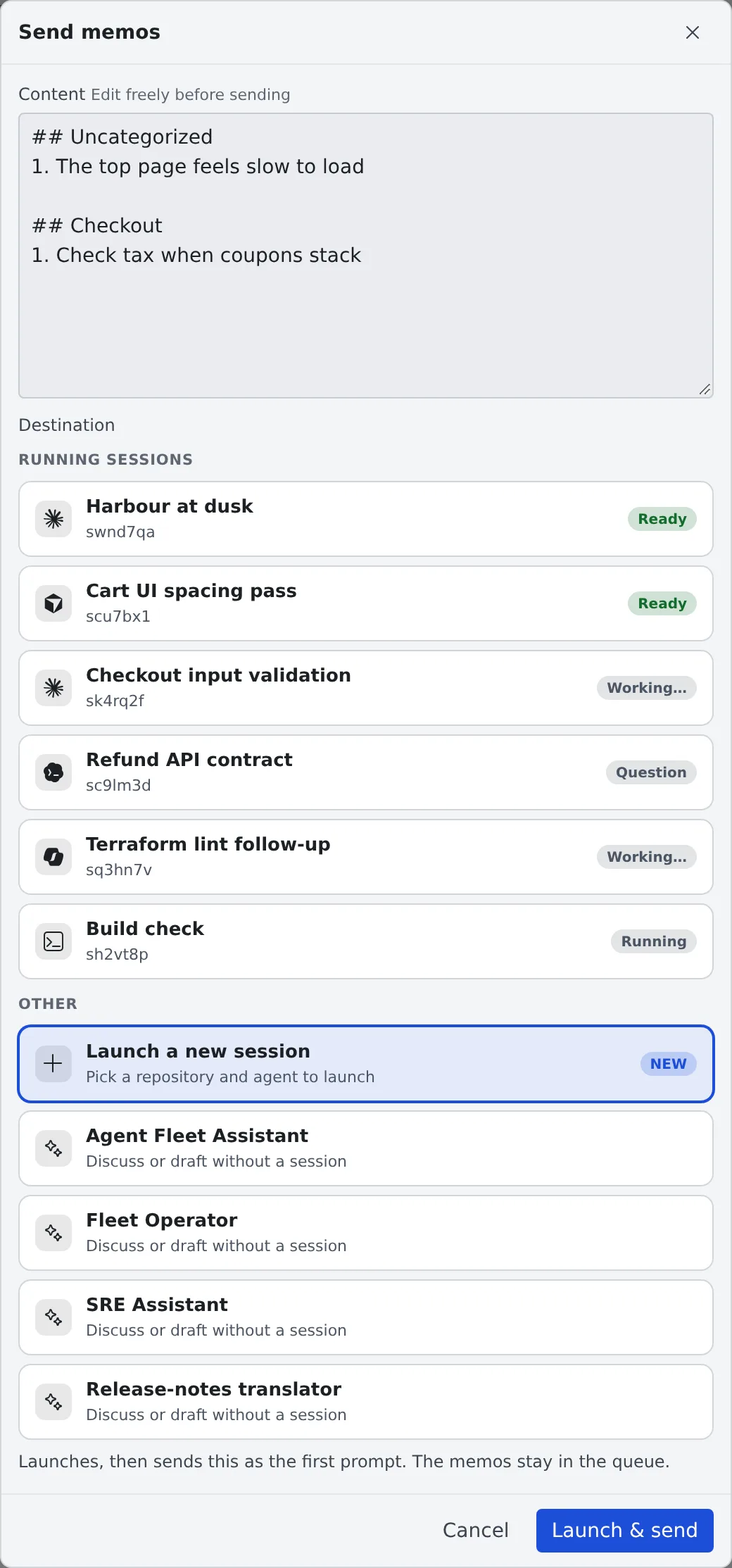
Check the Content on the “Send memos” screen. You can rewrite it freely before sending
-
Pick a Destination and send
| Destination | What happens |
|---|---|
| Running sessions | Sent on the spot. The memos are marked “Sent” and stay in the queue for 7 days. Tick “Keep the memos after sending” to leave them unsent in the queue instead (the Console remembers the choice); a memo that was already sent cannot be kept |
| Launch a new session | “Launch & send” opens the screen where you pick the repository and agent, with the content as the first prompt. The memos stay in the queue |
| An assistant | A new chat with that assistant opens with the content in the input box. Check it and send. The memos stay in the queue |
- Several memos sent together become one message, with a heading per category (
## …) and numbers from1. - A single memo is sent as its bare text
- A memo that points at an item adds one line with the item’s key and URL after its text, or alone when the memo is only the link
- A memo never goes anywhere on its own, such as to someone’s mail. It reaches only the destination you pick when you send it
Memos taken in from the inbox
Section titled “Memos taken in from the inbox”A memo taken in from an inbox recipe is marked “Inbox: …” (Ask a teammate through the inbox).
- It is never joined to your own memos: each is sent on its own, with its origin
- Selected together with your own memos, it can go only to a running session
- Started alone in a new session, that session is marked as coming from the inbox in the left pane
Run them by themselves
Section titled “Run them by themselves”Give a category auto-run settings, and the memos waiting in it are run as sessions with your instruction, with “Run now” or by themselves. A memo a session adds waits for your approval first (Run memos automatically).
Related
Section titled “Related”- Run memos automatically: have a category’s memos run as sessions
- Ask an assistant: the assistants you can hand memos to
- Start a session: launch a session with a memo as the first prompt
- Ask a teammate through the inbox: take an inbox recipe into your memos