
Find your way around the screen
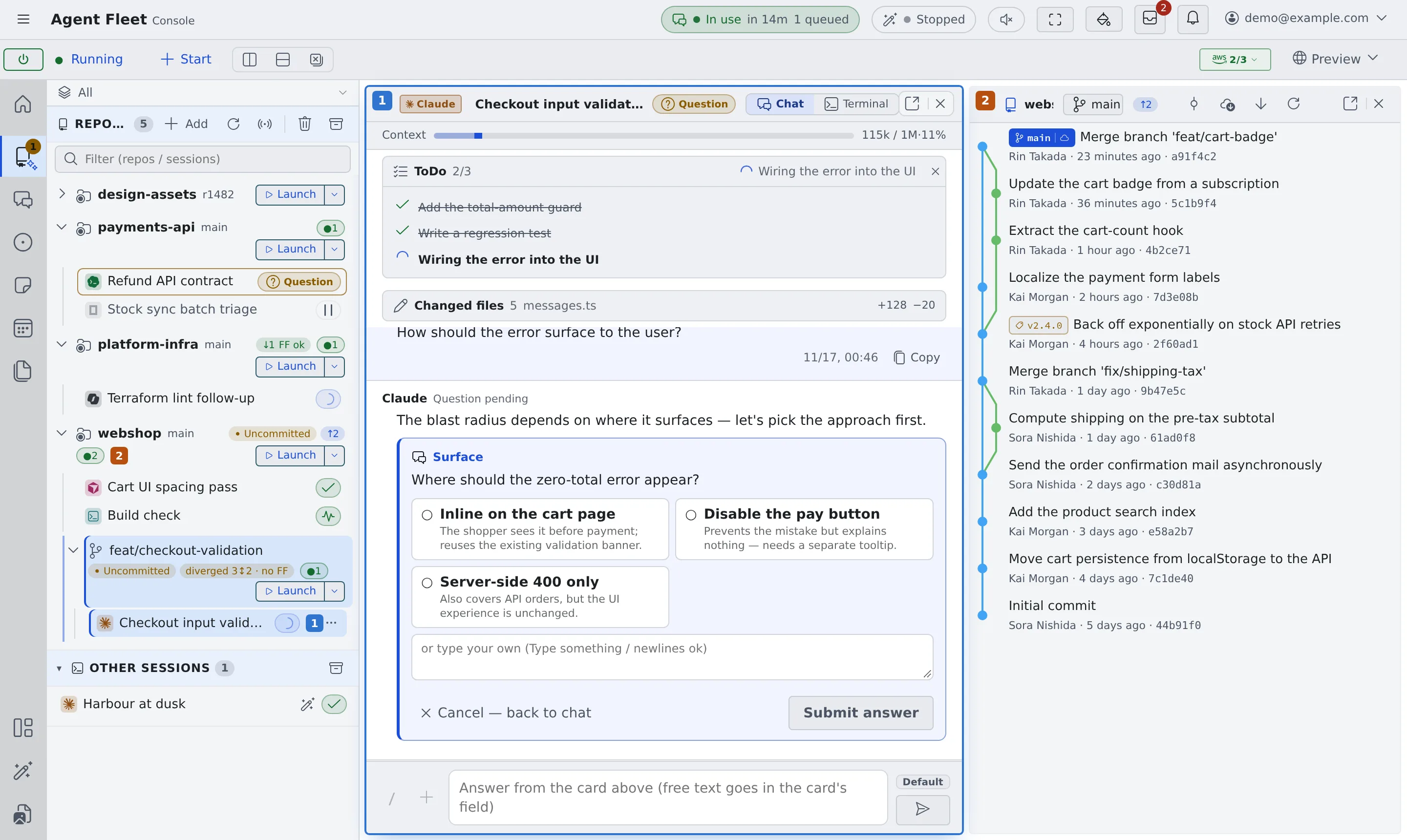
The Console’s screen has five areas. Knowing what sits where makes “in the left pane…” and “on the workspace action bar…” on the other pages easy to find.
How it works
Section titled “How it works”| Area | What is there |
|---|---|
| Top bar | Inbox, notifications, Appearance, the account menu |
| Workspace action bar | Workspace start and stop, Start, pane splitting |
| Activity bar | The column of icons at the left edge. It chooses what the left pane shows, and opens Home and other panes |
| Left pane | One view at a time: sessions, Terminals, Assistants, the issue tracker, the memo queue, auto-run, memory, schedules or files |
| Main area | What you opened: sessions, files, the commit graph and more. It can be split into panes |
Field help (ⓘ)
Section titled “Field help (ⓘ)”A form keeps a field’s explanation behind an ⓘ next to the label. Hover over it or focus it to read it. Text under a field is for the current state, such as a warning. See Icons, badges and menus.
Top bar
Section titled “Top bar”| Item | What it does |
|---|---|
| ≡ (the button at the left end) | Shows or hides the left pane; the activity bar stays. A double-click switches how the left pane appears (push or overlay) |
| Inbox | Requests and messages from other members |
| Notifications (the bell) | Notifications such as a finished turn or a question |
| Appearance | Language, main area layout, theme and colours |
| Account menu (your address at the right end) | Tenant switching, User guide, Getting-started guide, Settings, Sign out |
What this guide calls ”⚙ Settings” is the screen that Settings in the account menu opens. User guide opens this guide on the docs site in a new browser tab.
Workspace action bar
Section titled “Workspace action bar”| Item | What it does |
|---|---|
| Power button and state | Starts and stops the workspace. The state reads “Running”, “Starting…”, “Stopped” and so on |
| + Start | Starts a session, a chat or a shell (Start a session) |
| Split right, Split down, Close all | The three icons after Start. Adds or closes panes in the main area (Split the screen into panes) |
| Preview | Shows an app you run in the workspace in the browser |
Activity bar
Section titled “Activity bar”The icons in the upper group choose the view the left pane shows. Hover over an icon to read its name.
| Icon | What the left pane shows |
|---|---|
| Sessions | The cloned repositories with the sessions running under them, then Other sessions (agents running in home). Shells and SSM sessions are not listed here; they are in Terminals. Runs that memo auto-run started are not listed here either; they are in Auto-run |
| Active | The sessions that are running or still need you, as cards under their repository or space. Child sessions fold under their parent, every heading folds, and the Auto-run and Schedules groups at the end list running unattended runs (In the left pane: the Active view) |
| Shared sessions | The conversations other members shared with you, and handoffs waiting for your decision (a number on the icon) |
| Terminals | Every shell, under the place it was opened in (home, a repository, a space), and every SSM session, under the machine it logs in to. The header starts a shell or an SSM session and tidies the stopped ones (Find your shells and SSM sessions) |
| Assistants | The list of chats that use no repository, and + |
| Issue tracker | Issues from the Jira or GitHub you connected (Connect an issue tracker) |
| Memo queue | The instructions you jotted down |
| Auto-run | One row per run of a memo auto-run category: its state, the work item, the pull request and how long it has run. Press a row to open its session (See the runs) |
| Memory | Agent memory: the tidy-up’s suggestions and the memories, with search and filters (Read and correct agent memory) |
| Schedules | Sessions set to run at a fixed time, and the sessions they started. Shown only where the deployment offers it, or while sessions a schedule started still exist |
| Files | The workspace’s file tree |
- Press the icon of the view on screen to fold the left pane away. Press any icon to bring it back
- A mark on an icon tells you about a view you are not looking at:
| Mark | Meaning |
|---|---|
| Amber number on Sessions | Sessions waiting for your answer. It stays until you answer |
| Red dot on Sessions or Assistants | Something there is unread |
| Amber number on Shared sessions | Handoffs waiting for your decision |
| Red number on Issue tracker | Issues or pull requests that moved since you last opened the view |
| Red dot on Schedules | The latest run of a schedule failed |
| Amber number on Schedules | Sessions a schedule started that wait for your answer |
| Amber number on Auto-run | Runs whose session waits for your answer. It stays until you answer |
| Red dot on Auto-run | A run ended as failed. It clears when you open the view |
| Amber number on Memo queue | Memos waiting for your approval in an auto-run category. It stays until you approve or delete them (Run memos automatically) |
| Amber number on Memory | Memory suggestions waiting for your decision. It stays until you approve or reject them |
| Small sparkle at the lower right of the icon | The view lists sessions: Sessions, Shared sessions, Auto-run and Schedules. It is part of the icon and not a notice |
The other icons open a pane in the main area and leave the left pane as it is: Home at the top, and Sessions overview, Images and Open generated images at the foot. Images appears only where the deployment has an image engine.
Choose which icons the bar shows
Section titled “Choose which icons the bar shows”Right-click the activity bar (long-press it on a phone, or press the context-menu key on an icon) to open a list of the views with a check beside each icon that is shown. Pick a view to turn its icon off or on. The choice is saved with your other display settings, so it follows you to other browsers.
- The view on screen and the last icon left cannot be turned off. A view this deployment cannot use (Schedules, where there is no scheduler) is listed greyed out with the reason beside it
- Reset to the default icons turns every icon back on
- On a phone, the vertical swipe steps through the icons that are shown only. With the keyboard, Up and Down move focus over the icons that are shown
- A view whose icon is off can still be reached: anything that reveals a row in it brings it on screen, and its icon shows while it is on screen
- If a view whose icon is off has something waiting for you (a session stopped on your answer, a handoff, a memo or a suggestion waiting for a decision), a small amber dot appears at the foot of the icons. Press it to open the list; the view’s row names what waits. Updates that only tell you something moved (“new” and “unread” marks) are not shown for a view whose icon is off
Left pane
Section titled “Left pane”The left pane shows the view chosen on the activity bar.
- The Sessions, Terminals, Assistants, Schedules and Files views start with the working-set bar (“All”). It narrows what is listed to a named group; “All” shows everything. The marks on the activity bar count only what the chosen group lists
- In the Sessions view, click the Other sessions heading to fold or unfold it. The Shared sessions view says so when nothing is shared with you
While the workspace is stopped, Session history takes the place of Other sessions in the Sessions view and lists every session in one list. You can look at it; acting on a session waits until the workspace is started.
The marks on a session row are explained in Read a session’s state.
Main area
Section titled “Main area”What you open is shown in a pane of the main area. When nothing is open, Home is shown.
| Heading | What it lists |
|---|---|
| Waiting for you | Sessions waiting for an answer, a permission or a plan approval |
| Continue | Sessions you can pick up again, most recent first |
| At a glance | Tiles for the machine, running time, agents, model usage and usage limits. Each tile opens its detailed view |
| Start something | Start and Start chatting |
- The first time, the “Welcome to Agent Fleet” card sits on top (Start your first session)
- “At a glance” can be folded. Whether it is folded is kept in this browser. On a phone it starts folded
- Closing every pane brings you back to Home. Home at the top of the activity bar, or the leader key followed by
gh, opens it too
Related
Section titled “Related”- Use the keyboard and the command palette
- Split the screen into panes
- Use it on a phone
- Icons, badges and menus: what the marks on screen mean
- Settings: every settings tab