
Read and correct agent memory
Agent memory is Agent Fleet’s own memory, shared by every kind of agent. This page shows how to read what agents remembered, rewrite it, pin it and make agents forget it. How it differs from instruction files and the agent’s own memory is in Choose which memory your agents use.
How it works
Section titled “How it works”| What you do | What the agent does |
|---|---|
| Let sessions use memory in Set how memory is used (off by default) | Reads the index when it starts work, and searches and reads the memories it needs |
| Read, correct and pin memories in the Memory view | Saves what it learned with memory_save, and fixes part of one with memory_patch |
| Make agents forget a memory you do not want | A forgotten memory disappears from every agent’s view |
| Check the changes and revert bad ones | Reports a memory that was stale or wrong with memory_feedback |
- Memory has one scope per project plus a “user-wide” scope that every project receives. A worktree shares its repository’s memory. All of your spaces share one project scope called Spaces
- What one agent learned survives a switch of agent kind, a handoff, and a child session of another kind
- An agent’s save is shared at once, without your approval. A save that looks like it holds a secret is refused
Open the Memory view
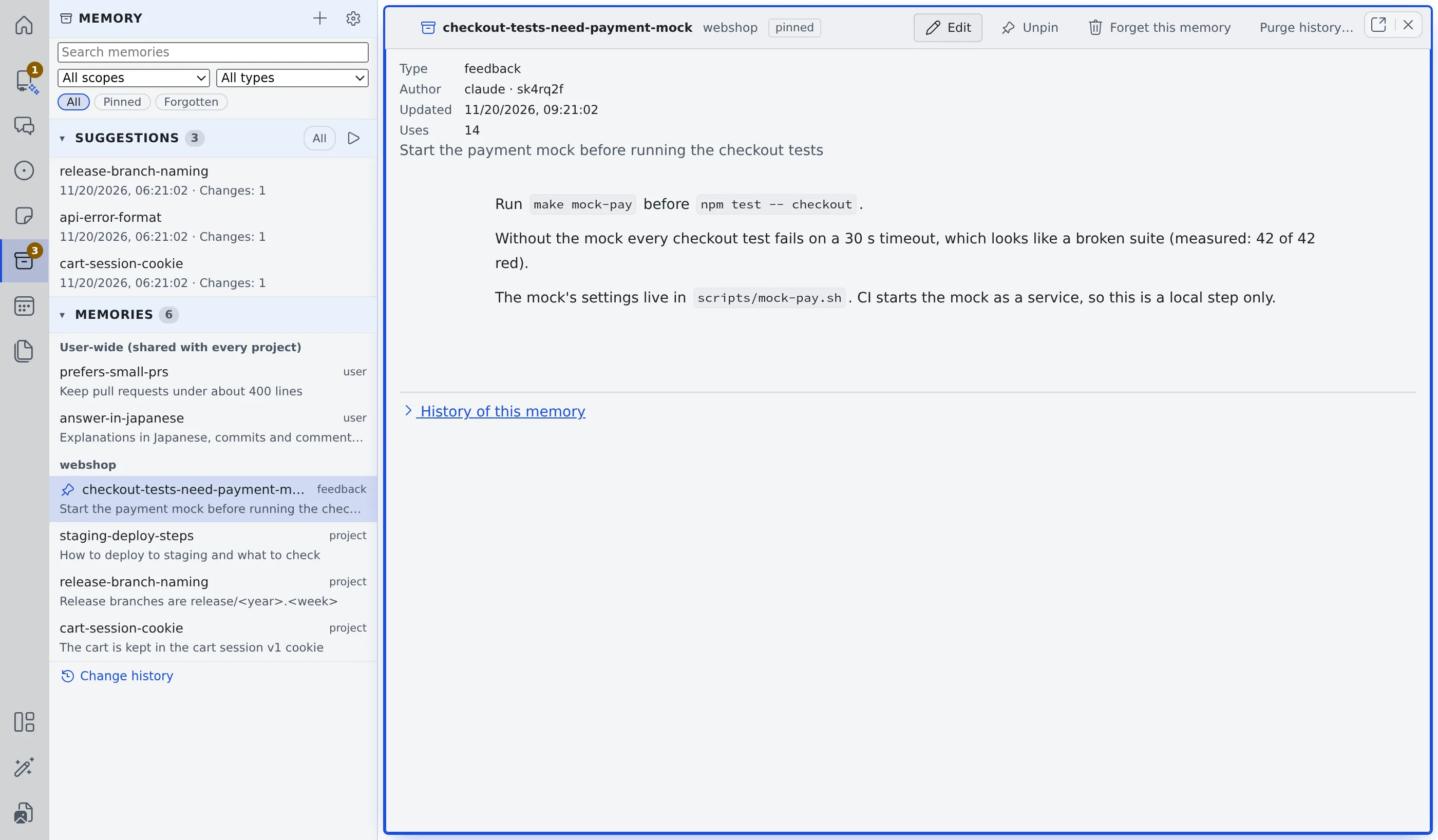
Section titled “Open the Memory view”Press the Memory icon on the activity bar. The left pane, headed Agent memory, lists the tidy-up’s pending suggestions and your memories by scope. The search box, scope, type and chips sit under the Memories heading and stay in view while the list scrolls. Each scope group has a chevron and a count; click it to fold the group (kept on this device). A group that holds the open memory or a search hit stays open. Click a memory and it opens in a pane of its own: one pane per memory, like a file, so you can keep it beside a session. Click a suggestion and it opens on its own in the Suggestions tab of the Memory pane. Change history at the foot of the left pane opens its Changes tab.
- The amber number on the icon is the suggestions waiting for your decision. It stays until you approve or reject them
- You can also search in the command palette’s Memory scope and use Open in Agent memory to open a memory’s pane (Use the keyboard and the command palette)
- ⚙ Settings → Agent memory → Open memory view shows the Memory view of the left pane
- Memory lives inside the workspace, so you can read it only while the workspace is running
Find and read memories
Section titled “Find and read memories”At the top of the left pane, pick a scope, a type and a chip.
| What you pick | What the list shows |
|---|---|
| Scope All scopes (the default) | The user-wide memories and those of every project, grouped by scope |
| Scope User-wide (shared with every project), or one project | Only that scope’s memories |
| Type | Only memories of that type |
| Chip All, Pinned or Forgotten | Everything, the pinned ones, or the forgotten ones |
- The Search memories box looks at once for every word you typed (in any order) in the name, description, type and author. When you stop typing it searches the bodies too
- When no memory holds every word, it shows the ones that hold some, under “No memory contains every word. Showing memories that contain some of the words only.”
- Pinned memories come first within their scope
- A memory’s pane shows its text (rendered as Markdown), description, type, Author, Updated and Uses (how often agents read it). Your own reading and searching do not count as uses
- A memory whose name or text looks like a secret is not listed, only counted
Write and correct memories
Section titled “Write and correct memories”- + in the head of the left pane creates a memory in the project on screen. While all scopes are shown it goes to the user-wide scope
- Edit in a memory’s pane puts the description and type in the fields at the top and the text in the editor below. Press Save (or Ctrl+S / ⌘S in the editor)
- A save goes through the same revision check and secret scan as an agent’s save, and is recorded in Changes as written by You (Console). You can revert it later
- A save that looks like it holds a secret is refused, and what was found is listed under the fields. Your draft stays
- A draft survives switching to another tab. Closing the pane or reloading the page drops it
- You can write into a project only once that project already holds memory
- An edit does not change which kinds of agent may read the memory (when it is limited to some)
Pin a memory
Section titled “Pin a memory”Press Pin in a memory’s pane and the memory is always listed first in the index agents read when they start work. Unpin takes it back.
- Memories that are not pinned are ordered by type (feedback and user first), then by how often they are read, then by recency
- The index has a size limit (about 24 KiB of described lines), and pins share it. If the pins alone do not fit, the last of them drop to the names-only list. Pin only what every session needs
- Only you can pin and unpin. An agent’s later update of a pinned memory keeps the pin
- A pin or unpin is recorded in Changes as “pin changed” and can be reverted
Forget a memory
Section titled “Forget a memory”Press Forget this memory in a memory’s pane and no agent sees the memory any more. Its text stays in the history. The pane turns read-only.
- Forgotten memories are listed under the Forgotten chip, newest first. Click one to open it, and Unforget brings back the text it had just before
- If that earlier text now trips the secret scan, Unforget is refused. Use Revert this change on its forget entry in Changes, where you can check the text before bringing it back
- A memory with no change in its history, such as a file put in place by hand, cannot be forgotten from here
- History of this memory, at the foot of a memory’s pane, lists that memory’s own changes. Pick one to see its diff. If older changes are missing, press Load older changes
Remove past text from the history
Section titled “Remove past text from the history”Forgetting only hides a memory: its past text stays in the history and in exports. To delete past revisions from the workspace, for example after writing a secret into one:
- Press Purge history… in the memory’s pane. A forgotten memory’s pane has it too
- The dialog shows how many change records go, which histories are rewritten, and what the secret scan found in past revisions (values masked)
- Type the memory’s name to confirm, and press Purge history
- The current text stays. To remove the current text too, edit the memory and save it first, then purge
- A forgotten memory loses every revision, the forget record included, and can no longer be unforgotten
- The memory’s earlier changes can no longer be reverted. Other memories are not affected
- Exports you already made cannot be recalled. Delete downloaded bundles or archives, and copies made elsewhere, yourself
- A purge can only be started from this screen. A session cannot start one
What agents see of a memory
Section titled “What agents see of a memory”A memory has a status that changes how agents see it. Lint, agents’ reports, the tidy-up and you set it; an agent cannot set it itself.
| Status | How agents see it |
|---|---|
| Normal | In the index, in search and when read |
| Suspect (has reasons) | Wherever it appears, its reasons come with it (Find stale memories) |
Quiet, or of kind log |
Not in the described part of the index. In the names-only list, in search and when read |
| Archived or superseded | Not in the index and not in search. Reading it returns a stub with the reason instead of the text |
- Your own Memory view shows every memory, whatever its status
- Reverting a change brings back the earlier version whole, its status included
When it goes wrong
Section titled “When it goes wrong”Saving says “The text looks like it contains a secret, so it was not saved”
Section titled “Saving says “The text looks like it contains a secret, so it was not saved””The text or the name tripped the secret scan. Remove that part and save again.
“Try again in a minute” appears
Section titled ““Try again in a minute” appears”For about half a minute after the workspace starts, saving, pinning and forgetting are not accepted. Wait a minute and press it again.
“cannot be forgotten from here” appears
Section titled ““cannot be forgotten from here” appears”A memory with no change in its history (a file put in place by hand, for example) cannot be forgotten from here.
Related
Section titled “Related”- Set how memory is used: the switch that lets sessions use memory
- Check memory changes: who changed what and when, and how to revert it
- Find stale memories: check for broken links and old paths
- Use memory tidy-up: have a model draft fixes