Get notified
Get notified when a session is waiting for you, when a pull request is ready to merge, and more. For each kind of notification, choose whether it raises a red dot, shows an OS notification or is read aloud.
How it works
Section titled “How it works”| What you do | What happens |
|---|---|
| Allow desktop notifications in the browser | A change you are not watching shows up as an OS notification |
| Set the switches for each kind of notification | What happens when that kind arrives changes |
| Open the bell at the top of the screen | The notification center lists the last 7 days of notifications |
| Turn on push on a phone or computer | A question or a finished turn reaches that device with the Console closed |
Set up notifications
Section titled “Set up notifications”Open ⚙ Settings → “Notifications”. The “What each notification does” table has one row per kind of notification.
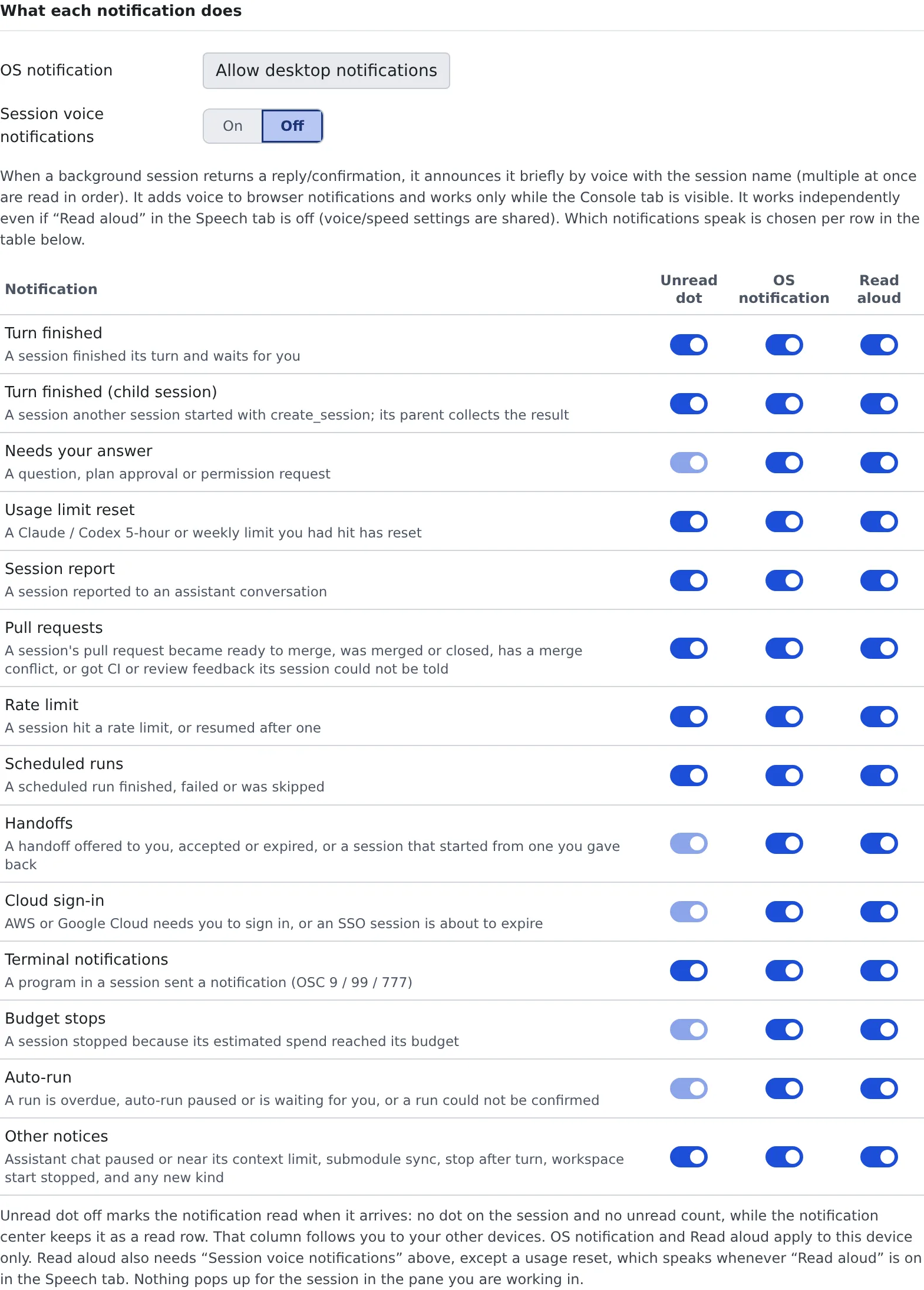
- Press “Allow desktop notifications” and allow it when the browser asks. The button is there only while the browser has not asked yet
- To be told by voice as well, turn “Session voice notifications” on
- In the table, set the three switches for each kind. All of them are on by default
| Column | When on | Applies to |
|---|---|---|
| Unread dot | Puts a red dot on the session and counts the notification as unread | Your other browsers too |
| OS notification | Shows an OS notification | This browser only |
| Read aloud | Announces it by voice. Sounds while “Session voice notifications” is on | This browser only |
- With the unread dot off, a notification is marked read when it arrives. The notification center keeps it as a read row
- You can keep OS notifications and read-aloud different on your work PC and your phone
- A notification for the session in the pane you are working in is neither shown nor read aloud, whatever the table says
Kinds of notification
Section titled “Kinds of notification”| Row | Arrives when |
|---|---|
| Turn finished | A session finished its turn and waits for you |
| Turn finished (child session) | A session another session started with create_session finished its turn. Its parent collects the result |
| Needs your answer | A question, plan approval or permission request |
| Usage limit reset | A Claude / Codex 5-hour or weekly limit you had hit has reset |
| Session report | A session reported to an assistant conversation |
| Pull requests | A session’s pull request became ready to merge, was merged or closed, has a merge conflict, or got CI or review feedback its session could not be told |
| Rate limit | A session hit a rate limit, or resumed after one |
| Scheduled runs | A scheduled run finished, failed or was skipped |
| Handoffs | A handoff offered to you, accepted or expired, or a session that started from one you gave back |
| Cloud sign-in | AWS or Google Cloud needs you to sign in, or an SSO session is about to expire |
| Terminal notifications | A program in a session sent a notification (OSC 9 / 99 / 777) |
| Budget stops | A session stopped because its estimated spend reached its budget |
| Auto-run | A run is overdue, auto-run paused or is waiting for you, or a run could not be confirmed (Run memos automatically) |
| Other notices | Assistant chat paused or near its context limit, submodule sync, stop after turn, workspace start stopped, and any new kind |
“Needs your answer”, “Handoffs”, “Cloud sign-in” and “Budget stops” wait for a person to act. The unread dot of these four cannot be turned off.
Get push notifications on your phone
Section titled “Get push notifications on your phone”Push notifications reach a phone or computer when the Console is closed. They appear in the “Push to this device” section of ⚙ Settings → “Notifications”. The section is shown only on a deployment where the administrator has switched Web Push on (Switch on Web Push).
- On an iPhone or iPad, first add the Console to the Home Screen and open it from there (Use it on a phone). Other browsers need no installation
- Turn on “Push notifications on this device” and allow notifications when the browser asks. If the browser has blocked them, allow them in its site settings first
- Under “Send a push for”, choose what you are pushed for
| Switch | Pushed when |
|---|---|
| A question is waiting | A session asks you a question |
| A plan is waiting for approval | A session needs you to approve a plan |
| A permission request is waiting | A session asks for a permission |
| A turn has finished | A session finished its turn and waits for you |
- Under “Send a push for sessions started by”, choose who started the session. Each row has two switches: “The session” (the session itself) and “Sessions it starts” (the reviewers and helpers it starts)
| Row | Covers |
|---|---|
| You | Sessions you started yourself, and the sessions they start |
| Auto-run | Sessions an auto-run started, and the sessions they start |
| Schedule | Sessions a schedule started, and the sessions they start |
-
A push is sent only when both its kind switch and its origin switch are on. All switches are on by default
-
For example, turn off “Sessions it starts” under Auto-run to keep an auto-run’s own pushes and drop those from the reviewers it starts
-
A push from an auto-run or a schedule starts its title with a label such as “Auto-run · ” or “Scheduled · ”, and one from a session another session started adds “Child · ”. Your own sessions have no label
-
The choices are saved on the server, so they apply to all your devices. Turning this device on or off affects this device only
-
Tapping a push opens that session in the Console
-
A session you are looking at in the Console on another device is not pushed. The Console reports what is on screen about every 20 seconds, and a report counts for 45 seconds
-
By default a push carries only the session name and what happened. A tenant administrator can allow the question’s text too (see below)
-
“Devices” lists every device that receives push. Remove stops push to that device. Signing out of the Console also stops it on that browser
-
If a device says it was set up before the server’s push key changed, turn it off and on again
Allow the question text (tenant administrators)
Section titled “Allow the question text (tenant administrators)”The push services of Apple, Google and Mozilla relay every push, so the text of a question stays out of it by default. A tenant administrator can allow it under Tenant settings → “Limits & idle” → “Push notifications” by turning on “Include the question text in push notifications”. The text is cut short, and the setting applies to every member of the tenant.
Be told by voice
Section titled “Be told by voice”With “Session voice notifications” on, a session you are not watching that returns a reply or a confirmation is announced briefly by voice, with its name.
- It sounds only while the Console tab is visible
- It works even when “Read aloud” under ⚙ Settings → “Read aloud” is off. Voice and speed are shared with the read-aloud settings
- A usage limit reset is the one exception: it sounds whenever “Read aloud” is on, not “Session voice notifications”
- The speaker button in the notification center toggles the same setting
How to choose a voice is in Use read-aloud.
Stop notifications to Discord and Slack
Section titled “Stop notifications to Discord and Slack”Under “Service notifications”, you can stop sending to Discord or Slack without disconnecting.
- A service that is not connected shows “Connect in Chat”
- You cannot switch them while the workspace is stopped
- How to connect, and how to choose the events each service receives, is in Connect Discord and Slack
Read them in the notification center
Section titled “Read them in the notification center”Open the bell at the top of the screen: the notification center lists the last 7 days of notifications. “Mark all as read” marks them all read at once. How the red dot clears is in Read a session’s state.
When it goes wrong
Section titled “When it goes wrong”No OS notification appears
Section titled “No OS notification appears”- If the tab says “Desktop notifications are blocked for this site in the browser”, allow them in the browser’s site settings. The Console cannot undo it
- Check that “OS notification” is on for that row
- A session shown in the pane you are working in gets no notification
Push notifications do not arrive
Section titled “Push notifications do not arrive”- No “Push to this device” section: Web Push is off on this deployment. Ask the deployment administrator
- On an iPhone, push works only when the Console is opened from the Home Screen icon, on iOS 16.4 or later
- Check that “Push notifications on this device” is on, that the kind is on, and that the device is listed under “Devices”
- A session shown on another device of yours is not pushed. Close it there or move it off the screen; the report expires 45 seconds after the last one. A push held back meanwhile is not sent later, so only the next notification reaches you
Voice notifications stay silent
Section titled “Voice notifications stay silent”- Check that “Session voice notifications” is on, and so is “Read aloud” on that row
- Nothing sounds while the Console tab is hidden
Related
Section titled “Related”- Read a session’s state: row marks and the red dot
- Connect Discord and Slack
- Use read-aloud
- Use it on a phone
- Change the display and your account