
Connect Muse Code
Install Meta’s Muse Code and sign in, and sessions can run it. It runs as Managed only, and it never asks to approve a tool.
How it works
Section titled “How it works”| What you do | What happens |
|---|---|
| Press “Install Muse Code” once, the first time | Muse Code is downloaded into your home |
| Sign in with a Meta account or an API key | Muse Code appears in the launch menu |
| Choose the model and Contributor mode under Behavior | Sessions created afterwards use them |
Install
Section titled “Install”Muse Code is not in the image, so you install it once before signing in. Install it on the Muse Code card in ⚙Settings → Agents; the sign-in stays in ⚙Settings → Model credentials.
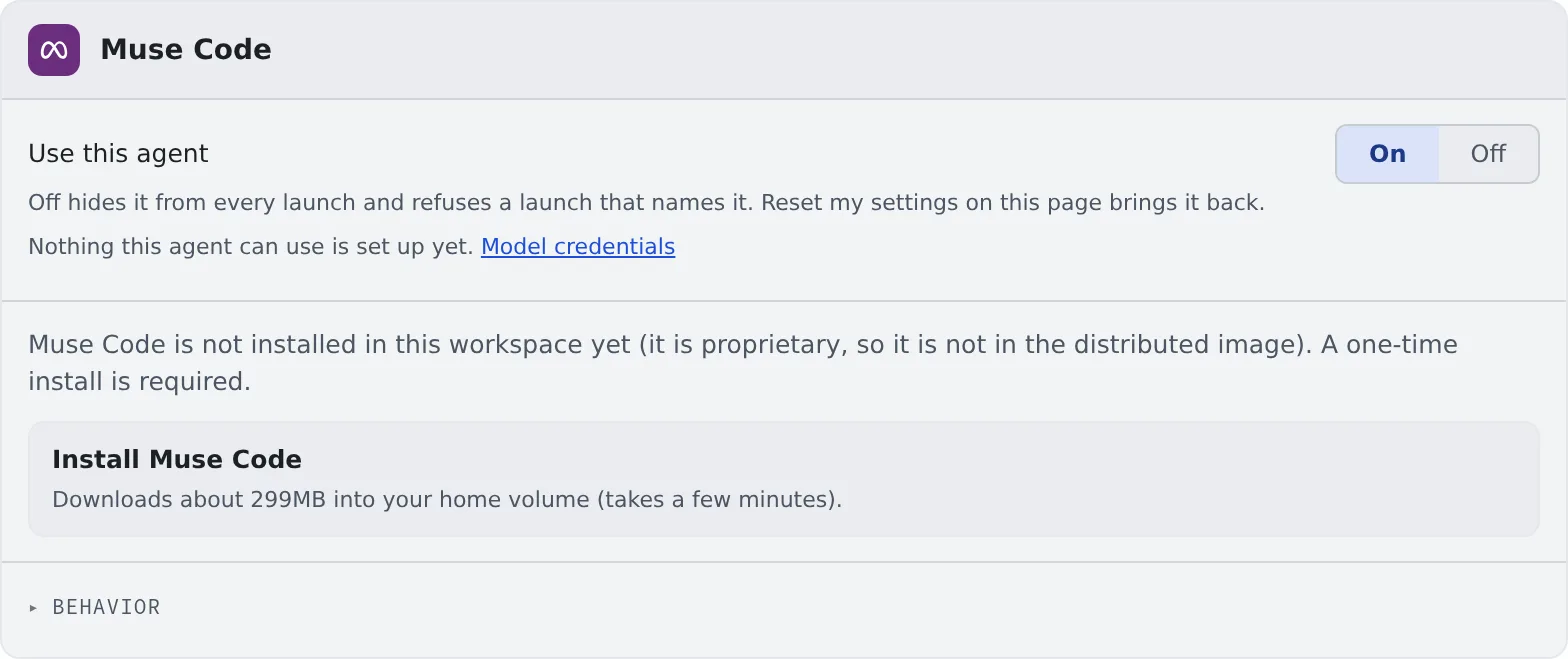
- Press “Install Muse Code” on the Muse Code card in ⚙Settings → Agents
- About 299 MB downloads into your home. This takes a few minutes. The progress stays on the card if you switch to another page meanwhile
- When it is done, sign in on the Muse Code card in ⚙Settings → Model credentials
Until it is installed, the Muse Code card in Model credentials says so and links to the Agents page instead of offering the sign-in.
Connect
Section titled “Connect”There are two ways to sign in, and they bill differently.
| Button | Billing | What you do |
|---|---|---|
| Sign in with your Meta account | Within your plan | Open the link shown in the browser, check the code and approve. There is no code to paste back |
| Use an API key | Per use | Save a Meta API key (one that starts with LLM) |
- Saving an API key removes the stored account sign-in and moves you to per-use billing. If you signed in with an account, “Disconnect” first
- The card shows whether the current connection is within your plan or billed per use
Update
Section titled “Update”When a newer pinned version exists, the Muse Code card in ⚙Settings → Agents shows “A newer version is available” and “Update Muse Code”.
- Until you press it, the installed version keeps being used
- Running muse sessions keep the old version until they restart
Behavior
Section titled “Behavior”Besides the model and the reasoning effort, “Behavior” on the Muse Code card in ⚙Settings → Agents has the following.
| Item | What it decides |
|---|---|
| Contributor mode | While on, conversations (messages between sessions included) may be used to improve Meta’s products. Off by default |
- Each session keeps the mode it was created with, across stop / resume and Agent restarts
- A change applies to sessions created afterwards, and to the assistant and AI assistance from their next use
Use it more safely
Section titled “Use it more safely”A muse session never asks to approve a tool. A sandbox cannot be built inside the workspace, so every tool call is allowed. Treat it like a shell session: it can do anything in this workspace.
Good to know
Section titled “Good to know”- It runs as Managed only. It cannot start in Terminal (CLI)
- The
/button beside the input box lists the running session’s own skills; pick one and it runs (Call a skill or a command) - When a turn stops on a usage limit, it resumes by itself once the limit lifts
- What Agent Fleet does not see, such as schedules and messages between sessions running inside muse, is in the Agents reference
When it goes wrong
Section titled “When it goes wrong”It says per-use billing although I use a plan
Section titled “It says per-use billing although I use a plan”Check whether the card says “META_API_KEY is set in this workspace’s environment.” That variable takes priority over the sign-in, so you are billed per use whatever the card shows. Remove it from the workspace environment variables to use your plan.
A turn ends with an error
Section titled “A turn ends with an error”When muse ends a turn with an error, the error appears in the conversation at the end of that turn: the kind of error and muse’s own message. The turn counts as failed, so a parent session’s fleet.session.idle watch and the session’s state reason see it as turn-failed.
- An error that says you are not signed in offers “Re-authenticate”, which opens muse’s card (The agent stopped, saying its login has expired)
- The conversation no longer fits the model’s context window: compact the conversation or start a new session, then send again
- The model provider refused to replay the earlier reasoning: start a new session or switch model, then send again
- A turn stopped by a usage limit shows its error too, and still resumes by itself once the limit lifts
“Install failed” appears
Section titled ““Install failed” appears”Check your connection and press “Install Muse Code” again.