Run the read-aloud engine
Provide and run the speech engine (VOICEVOX’s Zundamon) that reads replies aloud to members. The reading dictionary that applies to every member is kept on the same screen.
How it works
Section titled “How it works”| What you do | What happens |
|---|---|
| Provide a VOICEVOX engine the Control Plane can reach | Japanese read-aloud speaks in Zundamon’s voice |
| Set up Amazon Polly | Polly reads in its place while the engine is stopped or getting ready |
| Choose the engine’s mode under Read aloud | The engine starts and stops. On demand, it follows the demand by itself |
| Write readings into the Tenant-wide reading dictionary | Every member’s read-aloud says that spelling with that reading |
Each member decides whether to use read-aloud, and with which voice (Use read-aloud). A speech engine cannot be borrowed from another deployment.
Provide the engine
Section titled “Provide the engine”The VOICEVOX engine is not in the package. Provide it for your deployment target.
| Target | What to provide |
|---|---|
| AWS ECS | The speech engine stack (50-tts). It normally runs at zero and is started and stopped from this screen (Add Japanese read-aloud) |
| native, WSL | Run VOICEVOX on Windows, or VOICEVOX ENGINE on Linux (Provide it on native and WSL below) |
| Others | Run a VOICEVOX ENGINE the Control Plane can reach over HTTP |
- The Control Plane’s
AF_VOICEVOX_URLsays where the engine is. The default ishttp://127.0.0.1:50021 - For Polly, set
AF_POLLY_REGIONand AWS credentials the Control Plane’s process can see - While the engine is down, only speech fails. When it is back, read-aloud recovers from the next sentence
Provide it on native and WSL
Section titled “Provide it on native and WSL”The WSL or Linux side needs no audio setup: playback happens in the browser (on the Windows side under WSL2). All that is needed is that the Control Plane reaches a VOICEVOX engine over HTTP. Provide it in one of these ways; leaving it out affects no other feature.
| Way | What to do |
|---|---|
| A. Run it on the Windows side (WSL2) | Launching the VOICEVOX Windows app exposes the same HTTP API at 127.0.0.1:50021 on the Windows side |
| B. Run it directly inside WSL or Linux | Extract the Linux (CPU) build of VOICEVOX ENGINE and start it with ./run. The default is 127.0.0.1:50021; it takes about 1 GB resident and needs no Docker. The default URL matches, so af start needs no changes |
For A, it depends on WSL2’s networking mode:
- In mirrored mode (
networkingMode=mirroredunder[wsl2]in%UserProfile%\.wslconfig, Windows 11 22H2 or later), WSL reaches it atlocalhost:50021, so it works as is withaf start, no configuration - In the default NAT mode, WSL cannot reach the Windows loopback. Run the standalone engine (the Windows build of VOICEVOX ENGINE) with
run.exe --host 0.0.0.0, and point at the Windows host IP as WSL sees it (ip route | awk '/^default/{print $3}'). Windows Firewall must allow inbound connections from the vEthernet (WSL) interface
AF_VOICEVOX_URL=http://<windows-host-ip>:50021 af startTo change the URL or port, start with AF_VOICEVOX_URL (a full URL including the port). af passes your shell environment through to the Control Plane.
AF_VOICEVOX_URL=http://127.0.0.1:50022 af startUnder systemd, add Environment=AF_VOICEVOX_URL=... to the unit’s [Service] section (Run it as a systemd service).
Choose the engine’s mode
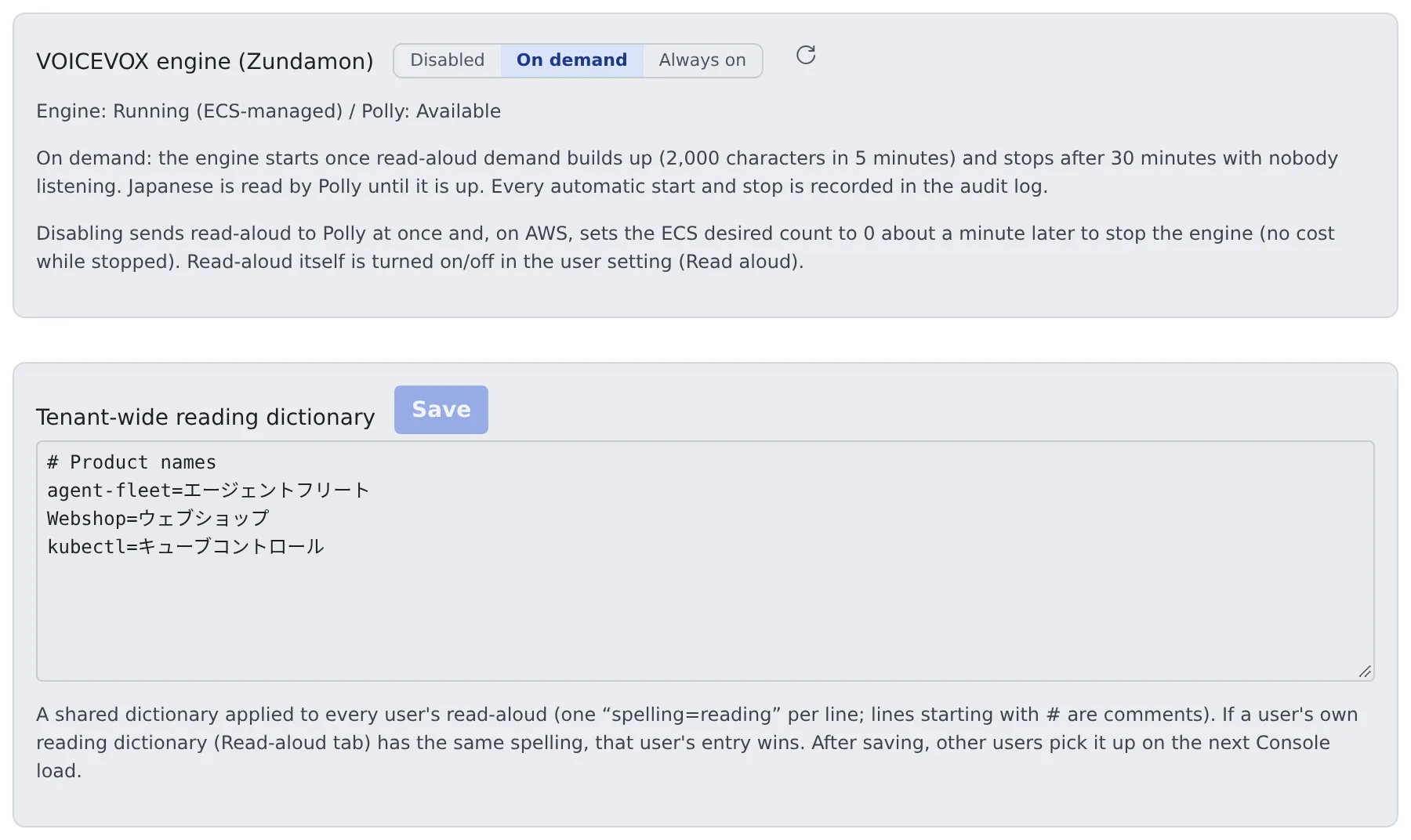
Section titled “Choose the engine’s mode”Open Admin from the account menu and choose Read aloud under Deployment. Only a deployment administrator (super_admin) can open it.
| Mode | What happens |
|---|---|
| Disabled | Read-aloud switches to Polly at once. On AWS, the ECS desired count goes to 0 about a minute later |
| On demand | The engine starts by itself once demand builds up (2,000 characters in 5 minutes), and stops by itself after 30 minutes with nobody listening |
| Always on | The engine is never stopped |
- Starting takes 1–2 minutes. Until it is ready, Polly reads Japanese in its place. Without Polly there is no sound in the meantime
- Every automatic start and stop is written to the audit log
- The Engine: line shows the engine’s state, whether it is ECS-managed or externally managed, and whether Polly is available
For an engine ECS does not manage (a standalone VOICEVOX, say), the screen changes as follows.
| Engine | Screen |
|---|---|
| An externally managed engine is reachable | There is no On demand. The switch only opens and closes the route; the engine itself is never started or stopped |
| There is no engine | There is nothing to route to, so the switch stays at Disabled. Once an engine is provided it can be used |
Build the pronunciation dictionary
Section titled “Build the pronunciation dictionary”Write the readings of product names and in-house terms into the Tenant-wide reading dictionary and press Save.
# Product namesagent-fleet=エージェントフリートWebshop=ウェブショップ- One
spelling=readingper line. A line starting with#is a comment - It applies to every member’s read-aloud. When a member’s own dictionary has the same spelling, the member’s wins
- Other members get a saved change from their next Console load
Tenant administrators and members may ask you to add words that keep being misread.
When it goes wrong
Section titled “When it goes wrong”| Symptom | Cause and fix |
|---|---|
| The voice is Polly, not Zundamon | The engine is starting or stopped. On demand, Polly reads until demand builds up and the engine starts |
| There is no sound at all | The engine is stopped and Polly is not set up. Provide one of them |
| The switch is stuck at Disabled | No engine is reachable from the Control Plane. Run one at AF_VOICEVOX_URL |
| A dictionary change does not change the reading | Other members get it from their next Console load. A member’s own dictionary with the same spelling wins |
Related
Section titled “Related”- Use read-aloud: the member’s setting
- Run inference engines on your own GPUs
- Read the audit log
For agents
Send this prompt to your agent to read this page.
Read https://agent-fleet.org/docs/operate/engines/read-aloud/index.md